
What the widget does
Schedule by Reform adds an employee schedule with lunches and breaks to Kommo and distributes new leads based on it. Features are listed at the top of the page; step-by-step setup follows below.
Installation and connection
Installation
- In Kommo, open Settings → Integrations (the marketplace) and find Schedule by Reform.
- Click Install and allow access to the account. An administrator does this once.
The connection is automatic: no keys or tokens to enter. After installation Kommo opens Schedule in the left menu, and Kommo employees and groups are pulled in automatically.
First launch
The first time the schedule is opened, the administrator sees a small "Need help with the setup?" window. There you can leave your name, company and phone number so the Reform team can help with the setup. Name and phone are filled in from the Kommo profile. The window is optional: Send submits the request, Not now closes it for good, and the widget works without it.
- If the section opens with a Connect button, access to the account wasn't granted or was revoked. Click it (administrator rights needed) and allow access.
- You can disable the widget at any time in the marketplace; the schedule and settings are kept in case you reinstall.
The Schedule section
Where to find it
Settings → Schedule. After publication in the marketplace, it becomes a separate item in the Kommo left menu.
What's on the screen

- Period: ‹ › arrows and the Today button.
- View: Week / 2 weeks / Month.
- Current time and the schedule time zone.
- The Fill from template button.
- Copy forward, Log and Settings buttons.
- Today is highlighted in the header.
- Current employee status under the name and a colored dot on the avatar.
- Working day cell: shift time, a working-day bar with the break and a "break 13–14" label.
- Sick leave (orange).
- Day off (hatched).
Grid and cells
- Grid: rows are employees grouped by group; columns are days.
- Working day cell: shift time (for example, 09:00–18:00), a working-day bar where the break shows as an orange gap, and a "break 13–14" label. In the Month view the cell is compact: "9–18" and the bar; the full time and break appear in a tooltip on hover.
- Other day types: day off (hatched), vacation (green), sick leave (orange), an empty "+" cell means the day isn't filled in.

Current employee status
The line under the name shows where the employee is now: "At work until 19:00", "On break until 14:00", "Starts Thu Sep 24 09:00", "No shifts". Updates once a minute.

2 weeks and Month views


Navigation
- Horizontal scrolling: two-finger swipe on a touchpad, the scrollbar under the grid, mouse wheel with Shift held, or dragging with the mouse by the date row, the employee column or a group name.
- The employee column and the date row stay pinned while scrolling.
Theme and language
The window adapts to Kommo's light or dark theme and switches along with it. The schedule window follows the Kommo user's language: English or Russian.

- Kommo administrator: everything, including the schedule, settings, queues, access and the API key.
- Schedule editor: a user without admin rights (for example, a head of sales) whom an administrator allowed to edit the schedule in Settings → Access. Can be limited to groups: then they edit only employees of their groups and see the rest read-only (those cells aren't selectable). Settings are not available to editors. More in Edit access.
- Other users see the schedule in view-only mode.
Editing the schedule
One or several days
- Click a cell: the editing panel opens on the right.
- To change several days or employees at once, drag the mouse across cells (or select with Shift / ⌘ / Ctrl held).
- In the panel, choose the day type: Working / Day off / Vacation / Sick leave.
- For a working day, set the shift start and end and the breaks (the Add break button; there can be several breaks). Quick picks are available: "09:00–18:00 · lunch 13:00", "08:00–17:00 · lunch 12:00", "10:00–19:00 · lunch 14:00", "09:00–14:00".
- Save applies the changes; Clear removes the shift (the day becomes unfilled).


Night shifts
If the end time is earlier than the start (for example, 22:00–06:00), the shift ends the next day. A break at 02:00 is supported too.

Fill from template
The Fill from template button in the top panel.
- Check the employees (there is "select all").
- Choose the period (4 weeks by default).
- Pattern:
- By weekdays: check the working days (Mon–Fri by default);
- Rotation (2/2 etc.): how many working days in a row and how many days off; counted from the first date of the period.
- Working hours and breaks.
- The Overwrite days that are already filled checkbox: turn it off to fill only empty days.
- Apply.


Copy forward
Copies the displayed week (or 2 weeks) to the next period of the same length. Filled days in the new period are overwritten. Not available in the Month view.
Import from Google Sheets
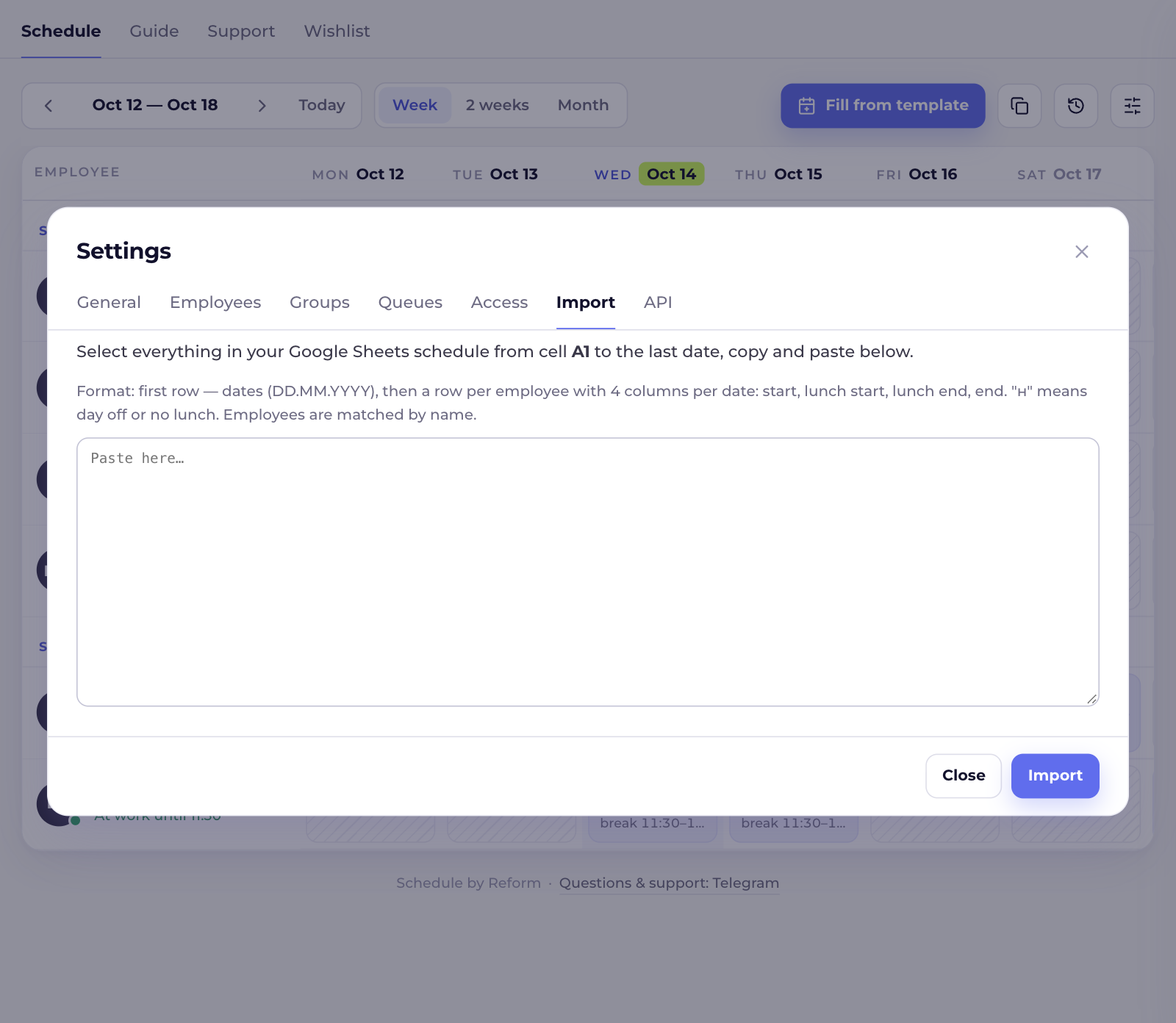
Settings → Import tab, for teams that kept the schedule in a spreadsheet.
- Select everything in the sheet from cell A1 to the last date, copy and paste it into the field.
- Sheet format: the first row holds dates (DD.MM.YYYY); then one row per employee with 4 columns per date: start, lunch start, lunch end, end. "н" means a day off (or no lunch). Time can be written as "9" or "9:30".
- Employees are matched by name; new ones are added.
| 21.09.2026 | 22.09.2026 | |||||||
|---|---|---|---|---|---|---|---|---|
| Anna Smith | 9 | 13 | 14 | 18 | 9:30 | н | н | 14 |
| Liam Carter | н | 10 | 14 | 15 | 19 | |||
Employees and groups
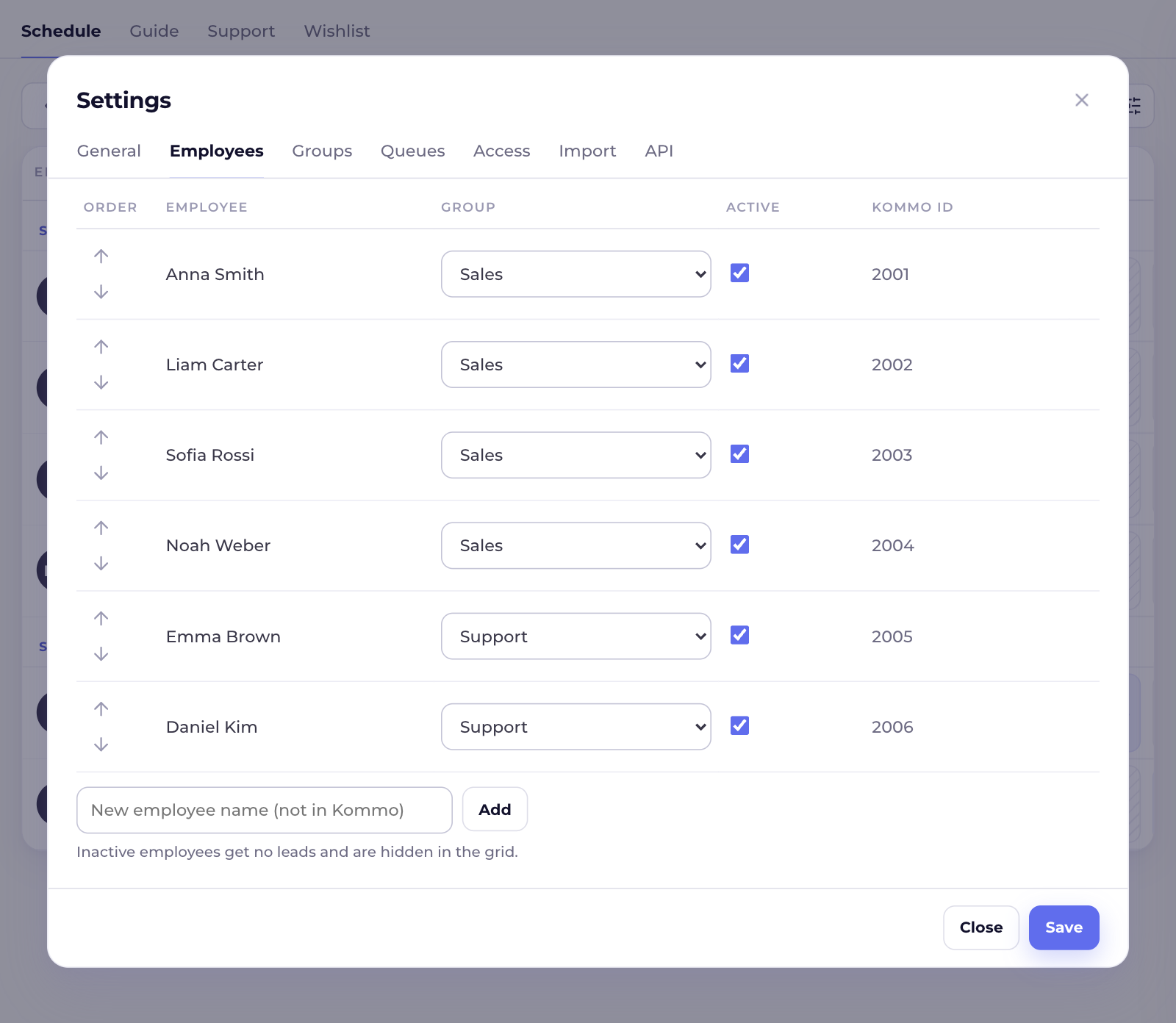
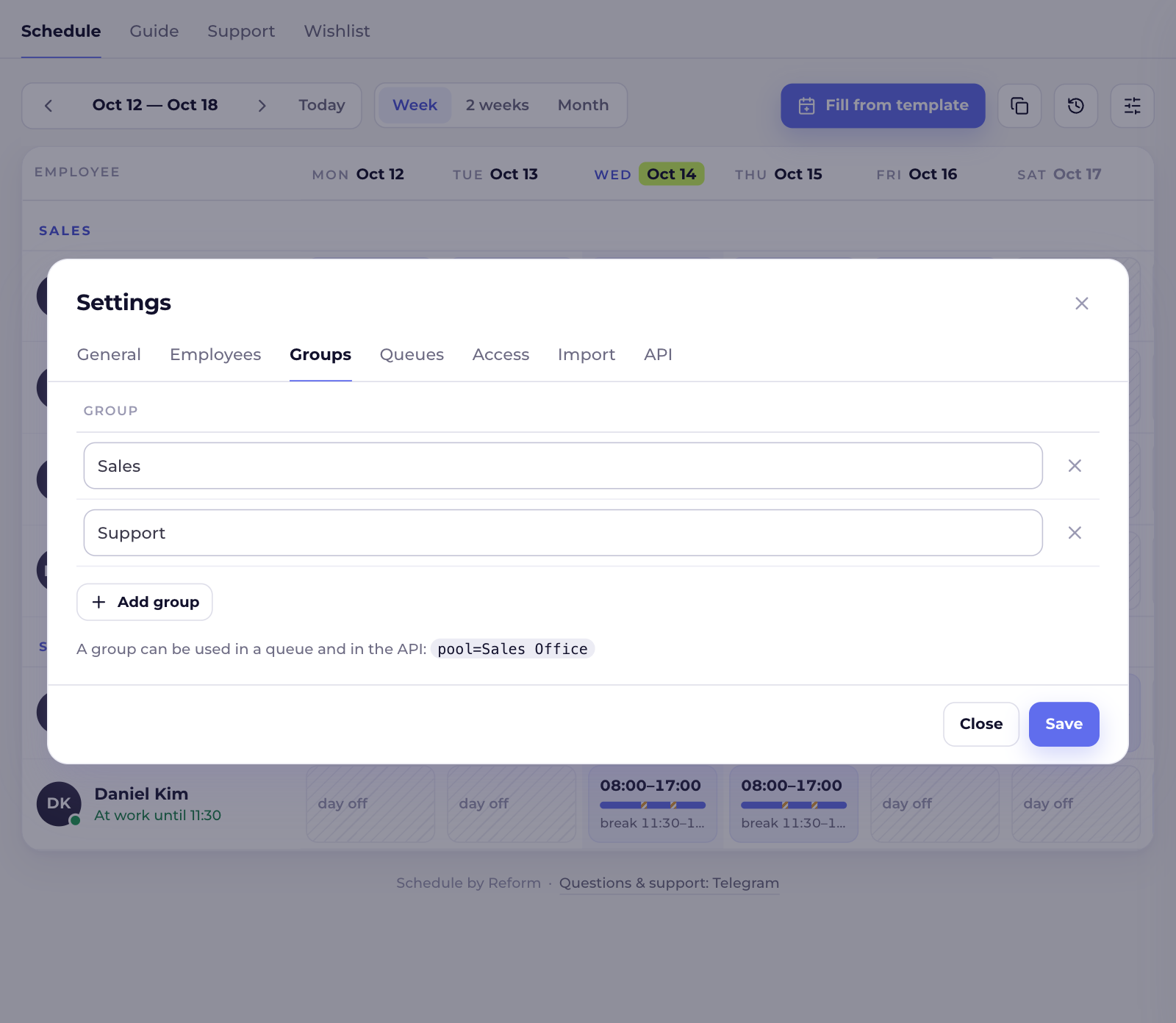
Where: Settings → Employees and Groups.
- Employees and groups are pulled from Kommo automatically when the schedule is opened (at most once every 10 minutes); to do it manually, use Refresh from Kommo.
- For each employee: order in the grid (arrows), group, and the Active checkbox. Inactive employees get no leads and are hidden in the grid (you can show them in General settings).
- You can add an employee who isn't in Kommo (for the schedule and the API; the pipeline doesn't assign leads to them).
- Groups can be renamed, added and deleted; a group is used in queues and in the API.
Queues and weights
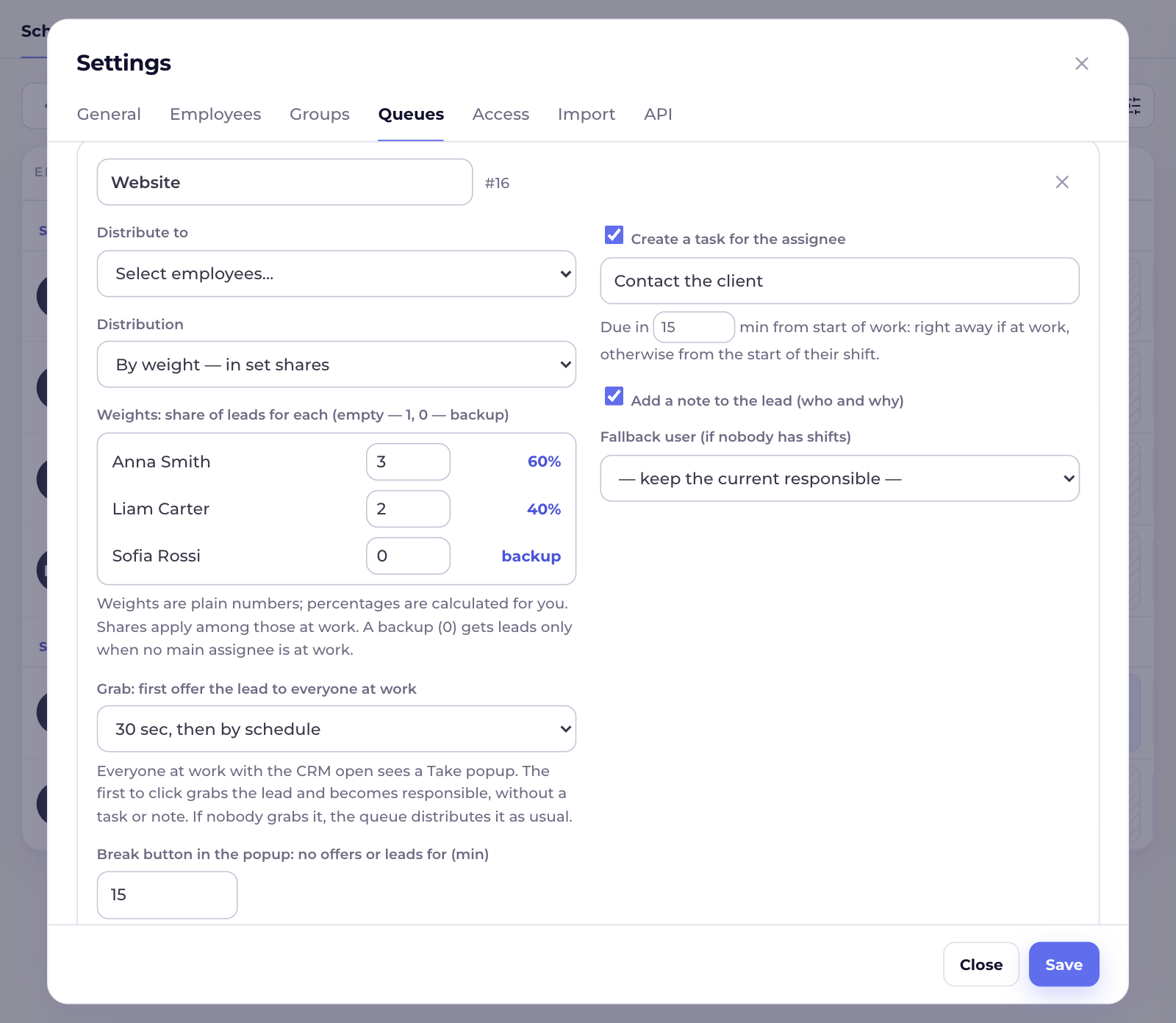
Where: Settings → Queues. A queue defines who gets leads and how. The "Main" queue is created on installation. Create a queue per source or pipeline: even with the same people, each queue has its own round, its own count and its own weights.
| Field | What it does |
|---|---|
| Name | Used to choose the queue in the pipeline trigger and to pass it to the API (queue=Website) |
| Distribute to | All active employees / a specific group / selected employees |
| Distribution | Round robin: in turn; Evenly: to whoever has the fewest assignments today; By weight: in set shares |
| Weights | For "By weight": a number next to each employee, with the share in percent shown right away. For example, 3 and 2 mean 60% and 40%. Empty means 1. 0 means backup: gets leads only when no main assignee is at work |
| Grab | First offer the lead to everyone at work, for 15 seconds to 2 minutes (see "Grab" below). Also the duration of the Break button |
| Skip if a break or shift end is closer than (min) | A buffer: for example, with 5, a lead won't be assigned to someone 5 minutes before their lunch |
| If the lead already has a responsible user | The lead was already assigned by an integration or telephony (for example, to the manager who worked with the client). Keep if they are at work now (default) / Keep if they work today / Always redistribute. If they aren't at work but start no later than the others, the lead also stays with them (with a task for the start of their shift) |
| Treat leads assigned to these users as unassigned | Users that integrations create leads on "by default". Such leads are always distributed. None selected means Kommo administrators |
| Create a task for the assignee | Task text and due time: N minutes from start of work, right away if the manager is at work, otherwise from the start of their shift |
| Add a note to the lead | The lead gets a service line saying who it was assigned to and why |
| Fallback user | Who gets the lead if nobody has shifts in the next month (otherwise the responsible user doesn't change) |
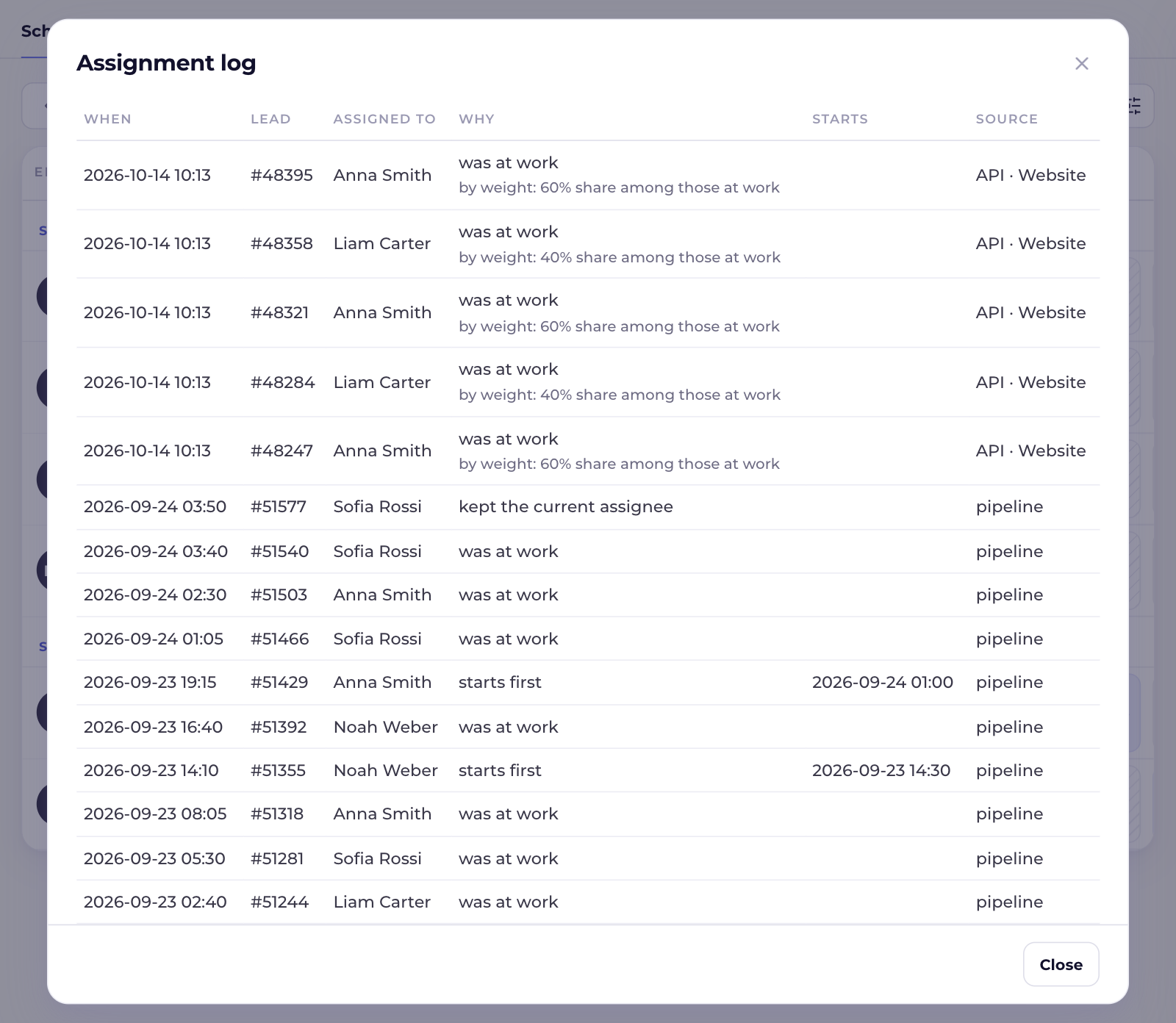
- Shares apply only among those at work. If Liam is at lunch, his share is split among the others in proportion to their weights.
- Shares hold at all times, not just by the end of the day: the next lead goes to whoever is furthest behind their share.
- At night, when nobody is at work: among the main assignees who start in the first hour, by their weights.
Grab
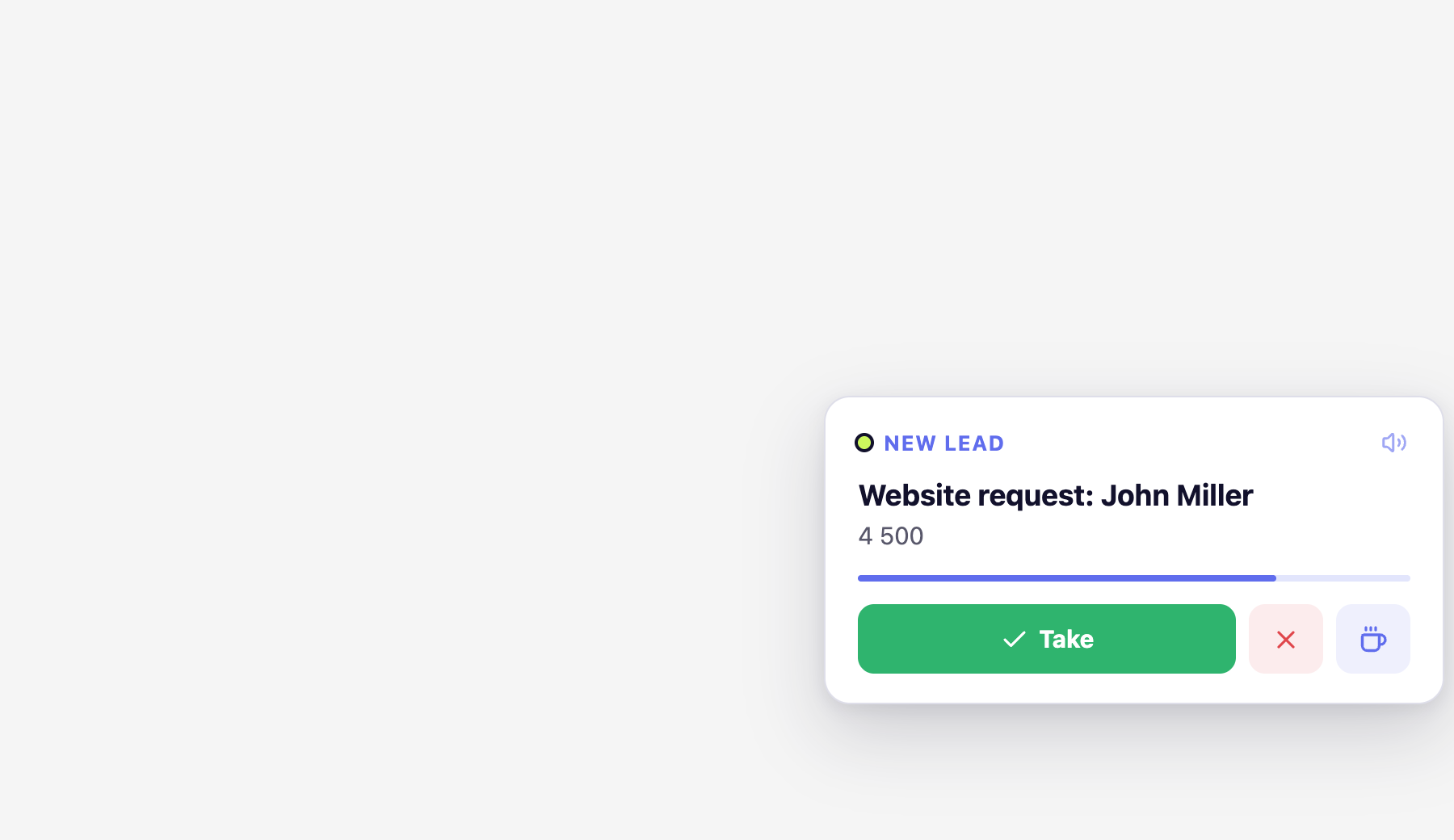
A new lead is first offered to everyone at work. Each of them sees a popup in the bottom right corner of Kommo with the lead name, amount and a time bar. The first to click Take grabs the lead and becomes responsible right away, without a task or note. The popup closes for everyone else.
| Button | What it does |
|---|---|
| Take | The lead is yours |
| ✕ | Skip: the popup closes for you only |
| Break (cup) | For the time set in the queue you get no offers and no leads. A "On a break until …" badge with an "I am back" button stays at the bottom. Exception: if nobody at all is at work, the lead goes to whoever returns first |
| Sound icon | Mute or unmute the signal. Remembered per employee; with several Kommo tabs open, only one beeps |
- Where to turn it on: Settings → Queues → "Grab: first offer the lead to everyone at work": 15, 20, 30, 45, 60, 90 or 120 seconds.
- Nobody grabbed it (or everyone clicked ✕): the queue distributes the lead as usual, by schedule and weights, with a task and a note.
- Several leads at once wait in line: the next popup appears once the previous lead is decided. Leads for different people are offered in parallel.
- Only those at work by the schedule (not at lunch or on a break) with Kommo open in a browser see the popup; the mobile app doesn't show it.
- The log marks these leads as "grabbed".
Digital Pipeline trigger
- Open Leads → Automate (Digital Pipeline) for the pipeline you need.
- On the stage you need (usually the first), click Add trigger and choose Schedule by Reform.
- In the Queue field, choose a queue from the list (the first one by default).
- Choose when to fire (for example, when a lead is created / moved to the stage) and click Done.
From then on, every lead on the stage gets a responsible user within a few seconds, plus a task and a note if enabled. Different sources: different stages or pipelines with triggers for different queues; a split by a lead field can be done with a Kommo trigger condition or a Sensei process.
How the widget chooses the responsible user
The responsible user is a "default" one (a Kommo administrator or a user from the "unassigned" list), or someone else is at work now or starts earlier. Go on to step 2.
The client's manager is at work now (or, if the queue says so, works today), or isn't at work but starts no later than the others; then the task is set for the start of their shift. In the log: "kept the current assignee".
If the queue is set to "Always redistribute", this step is skipped.
Pick one of them: round robin, whoever has the fewest assignments today, or by weight. No main assignees (weight above 0) at work — backups.
Night, a day off, everyone at lunch. Find who starts work first (within 31 days) and take everyone who starts within an hour after them — leads are split among them by the queue's method. So weekend leads don't pile up on the one person who comes in half an hour early. Each gets a task at the start of their own shift. Change the window in the queue settings: "When nobody is at work" (0–120 min; 0 — only to whoever starts first).
The fallback user (if set), otherwise the responsible user doesn't change; a note is added to the lead.
Examples
Anna is at lunch until 14:00 → the lead goes to Liam, who is at work.
The lead goes to Sofia, who starts on Monday at 9:00; the task "Contact the client" is due at 9:15.
Noah's shift is 22:00–06:00 with a break at 02:00 → night leads go to him, except during his break.
Liam is on vacation → he simply gets no leads.
Telephony created the lead directly on Anna, who worked with the client. Anna is at work → the lead stays with her.
Anna has already gone home and Liam is at work → the lead goes to Liam.
A returning client calls and nobody is at work. Their manager Anna starts at 9:00 in the morning, like everyone else → the lead stays with Anna, task due at 9:15.
The integration didn't find the contact and created the lead on an administrator → the lead is distributed as a new one.
"Website" queue: Anna 3, Liam 2. Out of 10 leads Anna gets 6, Liam 4. Anna at lunch — all go to Liam.
Sofia is in the queue with weight 0. Anna and Liam have gone home and Sofia is at work → the lead goes to Sofia right away.
Anna got 5 night leads in the morning → during the day new leads go to her colleagues until the load evens out. Night leads count towards the day the manager starts working on them.
- Each queue has its own round and count: create a queue per source so that high-value and low-value leads are split separately.
- Everything is calculated in the schedule time zone (Settings → General).
Assignment log
Where: the Log button in the top panel.
The last 100 assignments: when, which lead (with a link to it), who it was assigned to, why ("was at work" / "starts first" / "kept the current assignee" / "grabbed" / "backup — no main assignees at work") with a detail such as "by weight: 60% share among those at work", when they start, and the source and queue (pipeline · Website / API · Social).
API for Sensei, Make and other services
Key
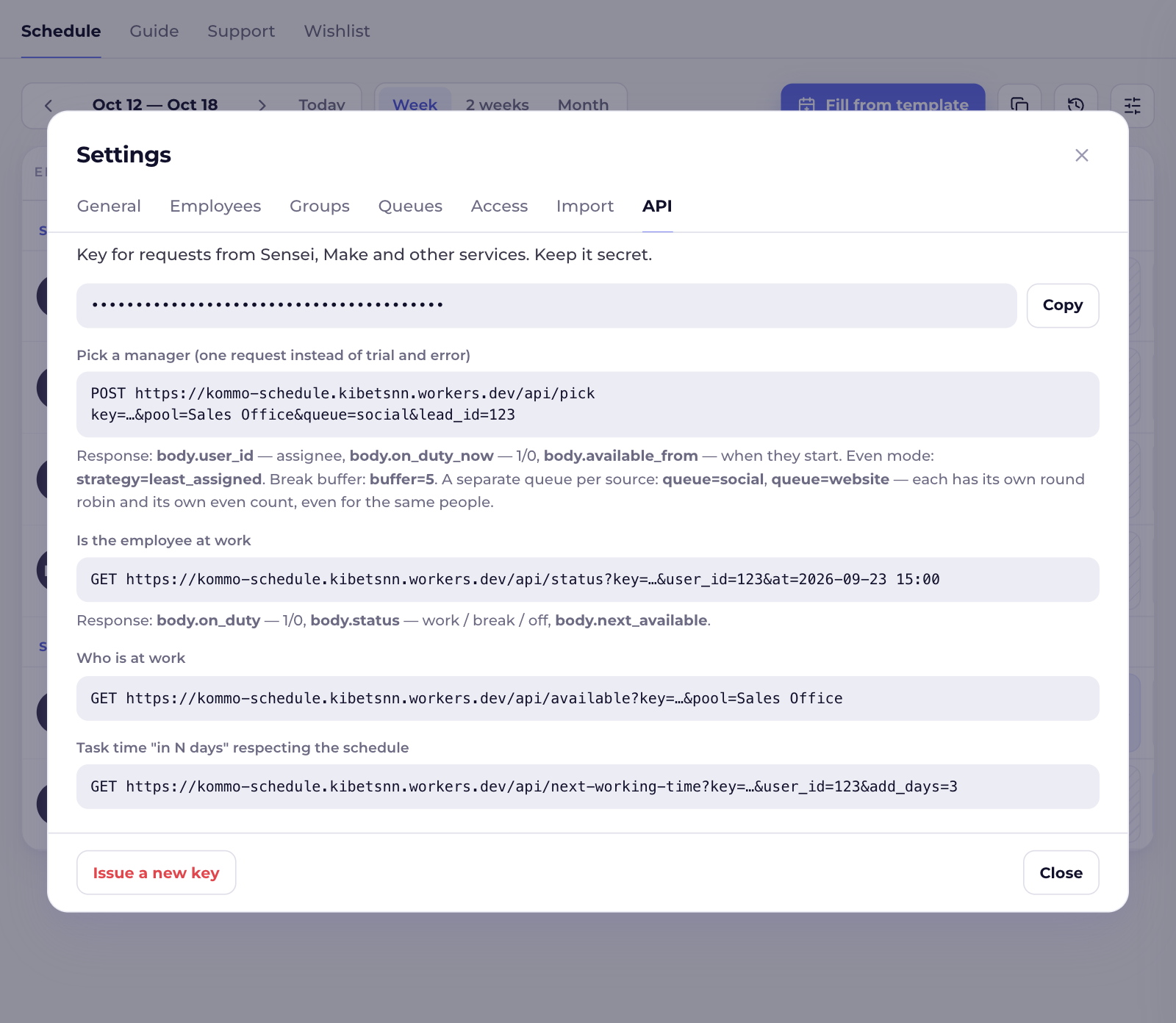
Settings → API. There you'll also find Copy and Issue a new key; the old key stops working. Pass it as key=… in the request or in the X-Api-Key header.
Address and format
https://kommo-schedule.kibetsnn.workers.dev/api/...
- The actual address is shown in the settings.
- GET or POST requests (JSON or form).
- Responses are flat JSON with no nesting, convenient for Sensei webhooks: fields are available as
body.user_idand so on. - Times in responses are in the schedule time zone (
2026-09-23 15:00) and in unix seconds (fields with the_unixsuffix).
Common parameters
at
Time, where applicable. Empty means now; accepts 2026-09-23 15:00, 23.09.2026 15:00, ISO format, unix time.
queue
Queue. The name of a queue from the settings: its members, method and weights are used (shared with the pipeline trigger). Any other name is a separate queue with its own round over pool.
pool
Who. A group name or id; or a comma-separated list of Kommo user ids or names; empty means all active employees. Not needed with a configured queue.
Requests
| Request | Parameters | Response (main fields) |
|---|---|---|
Pick a manager/api/pick |
queue, pool, strategy (least_assigned for even), buffer (minutes before a break), window (start window, min, default 60), at, lead_id (for the log and Grab), offer (Grab, seconds, up to 25; for Sensei — 5 at most), fallback_user_id, assign=1 (set the chosen user as responsible in lead lead_id right away), dry_run=1 (check without moving the queue) |
ok (1/0), user_id (Kommo id), user_name, on_duty_now (1/0), available_from (when they start), until, detail (why chosen), taken (1 if grabbed) |
Assign like the pipeline trigger/api/assign |
lead_id, queue (queue name from Settings → Queues) |
Does everything by the queue settings: keeps the client's manager if at work → Grab (up to 2 minutes) → queue; sets the responsible user, task and note. Replies immediately: ok, kept, offered, user_id (empty while Grab is running) |
Is the employee at work/api/status |
user_id (Kommo id) or user_name (full name), at |
status (work / break / off / away — on a Break), on_duty (1/0), works_day (1/0 — works that day at all; to check a day, pass at = date), day_start, day_end, until, next_available |
Who is at work/api/available |
pool, at, buffer |
count, user_ids (comma-separated), user_names, first_user_id |
Time "in N days"/api/next-working-time |
user_id, from (starting point), add_days |
datetime: the employee's nearest working time |
Sensei webhook, step by step
- URL:
https://kommo-schedule.kibetsnn.workers.dev/api/pick, request type POST. - Headers:
X-Api-Keywith the key from Settings → API (48 characters: digits and a–f; don't confuse it with the Kommo integration keys). - POST parameters:
queue=Website,lead_id=lead.id. - Turn on Process the response from the server. On the left, the field path always with
body.:body.user_name,body.on_duty_now; on the right, the process parameter. - After the step, a condition, e.g.
on_duty_now= 1 → "at work", otherwise → "not at work".
- Turn on only "Process the response from the server": it can't be combined with "Wait for the result".
- Sensei waits about 9 seconds for a reply, then repeats the request. A repeat of the same
lead_idto the same queue within 2 minutes isn't distributed again — the widget returns the previous choice. So keepofferin Sensei at 5 or less; for a longer Grab use/api/assign. - Map only the fields you need. Time:
available_fromas text in the schedule time zone,available_from_unixas unix time (for task due dates). user_nameis the full name as in Kommo; don't pass an ID inuser_name(useuser_idforlead.responsible.id).
body.user_id / body.user_name → set the responsible userbody.available_from_unix → task due timeErrors
Add body.error and http.status to the response mapping: Sensei doesn't treat 400/404 as a step error, and without them the parameters just stay empty.
| error | HTTP | Meaning |
|---|---|---|
no_key / bad_key | 401 | no key or a wrong key |
user_not_found | 404 | employee not found: check the name, or that user_name doesn't contain an ID |
bad_at | 400 | the time couldn't be parsed |
no_schedule | 200, ok = 0 | nobody has shifts in the next 31 days |
Edit access
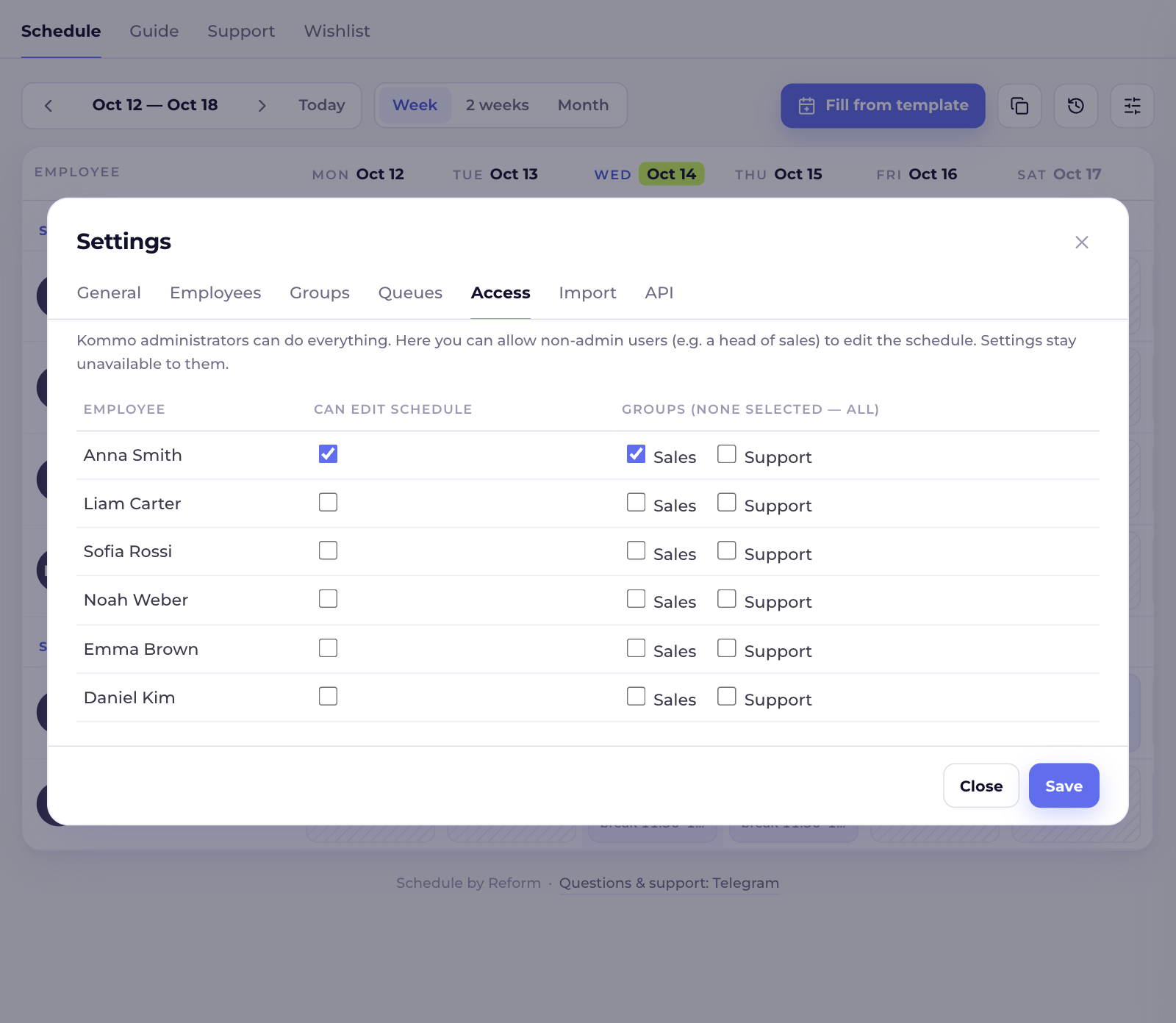
Where: Settings → Access (administrators only).
- In the list of Kommo users, check Can edit schedule for the people you need.
- To limit a person to their groups, check those groups; if no groups are checked, they can edit the schedule of all groups.
- Save. The permissions take effect the next time this user opens the schedule.
The head of sales doesn't have Kommo admin rights but needs to manage their managers' schedule.
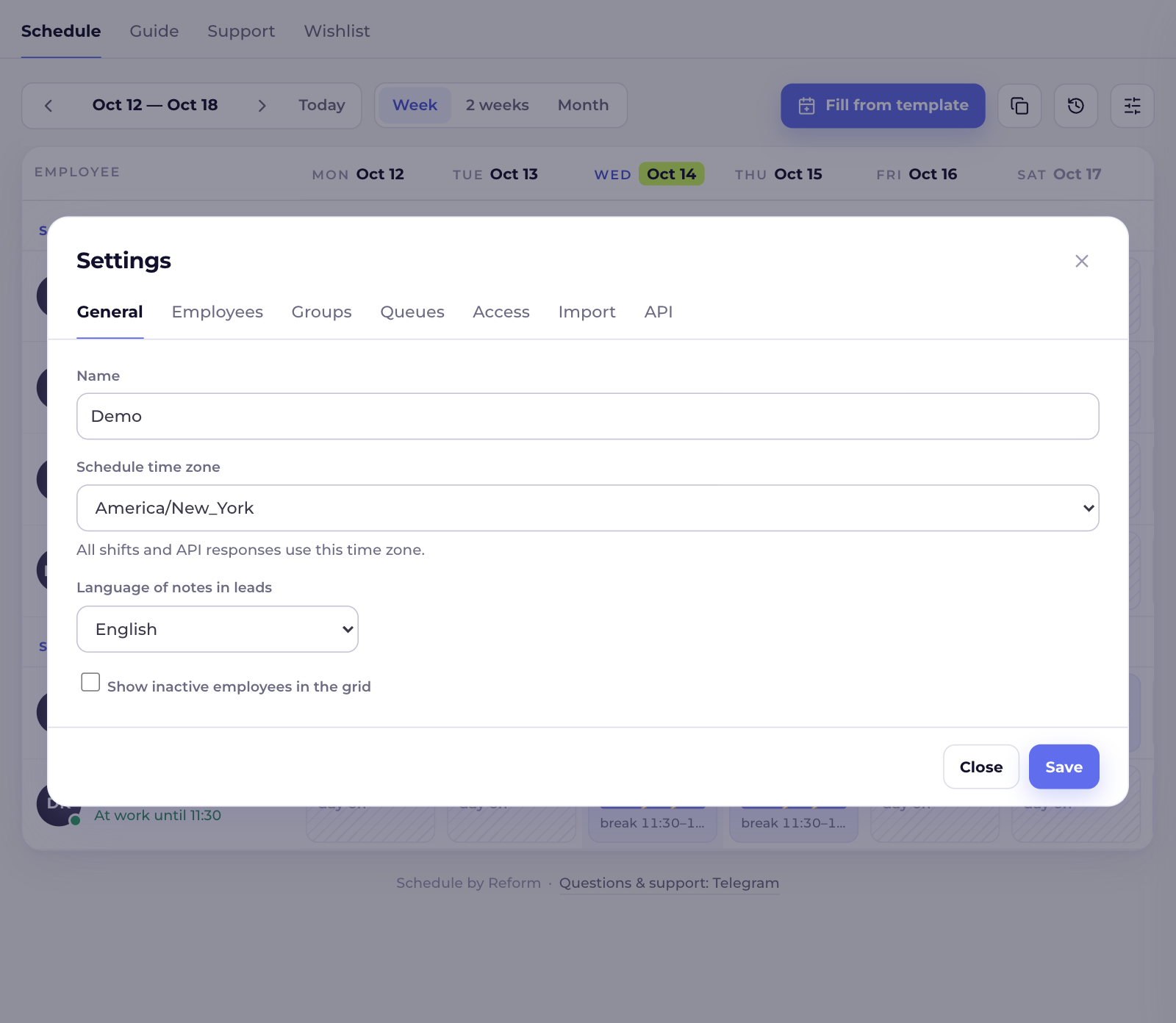
General settings
Where: Settings → General.
- Name of the account in the schedule.
- Schedule time zone: all shifts and API responses use it (taken from Kommo on connection).
- Language of notes in leads: English or Russian.
- Show inactive employees in the grid.
FAQ and troubleshooting
No Settings, Log or Fill from template buttons
That's how the schedule looks for an employee without Kommo admin rights. An administrator can allow editing in Settings → Access. If you are an administrator and see a Connect button, the widget's access to Kommo was revoked: click it.
A lead wasn't distributed
Check that the queue's employees have shifts, the trigger is on the stage with a queue selected, and there is an entry in the Log.
The Grab popup doesn't appear
Grab is turned on in the queue. Only those at work by the schedule with Kommo open in a browser see the popup. If you clicked Break, a badge is shown at the bottom: click "I am back". After a widget update, refresh Kommo (Cmd/Ctrl+Shift+R).
How do I split different sources?
Create a queue per source (even with the same people) and add triggers with those queues to the right stages or pipelines. A split by a lead field can be done with a Kommo trigger condition or in Sensei with the queue parameter.
The Sensei webhook ran, but the parameters are empty
Check the body. prefix on the left, the key in the X-Api-Key header, and that user_name contains a name, not an ID. Add body.error and http.status to see the cause.
Do I need Sensei?
No. Distribution works through the Kommo trigger; the API is an extra option.
Where is the data stored?
On the Reform server. Only employees, groups and the leads being distributed are used. See the privacy policy for details.
How far ahead does the widget look?
It looks for the nearest shift within 31 days.
Support
When contacting us, include your Kommo account address and, if the question is about a lead, its number.